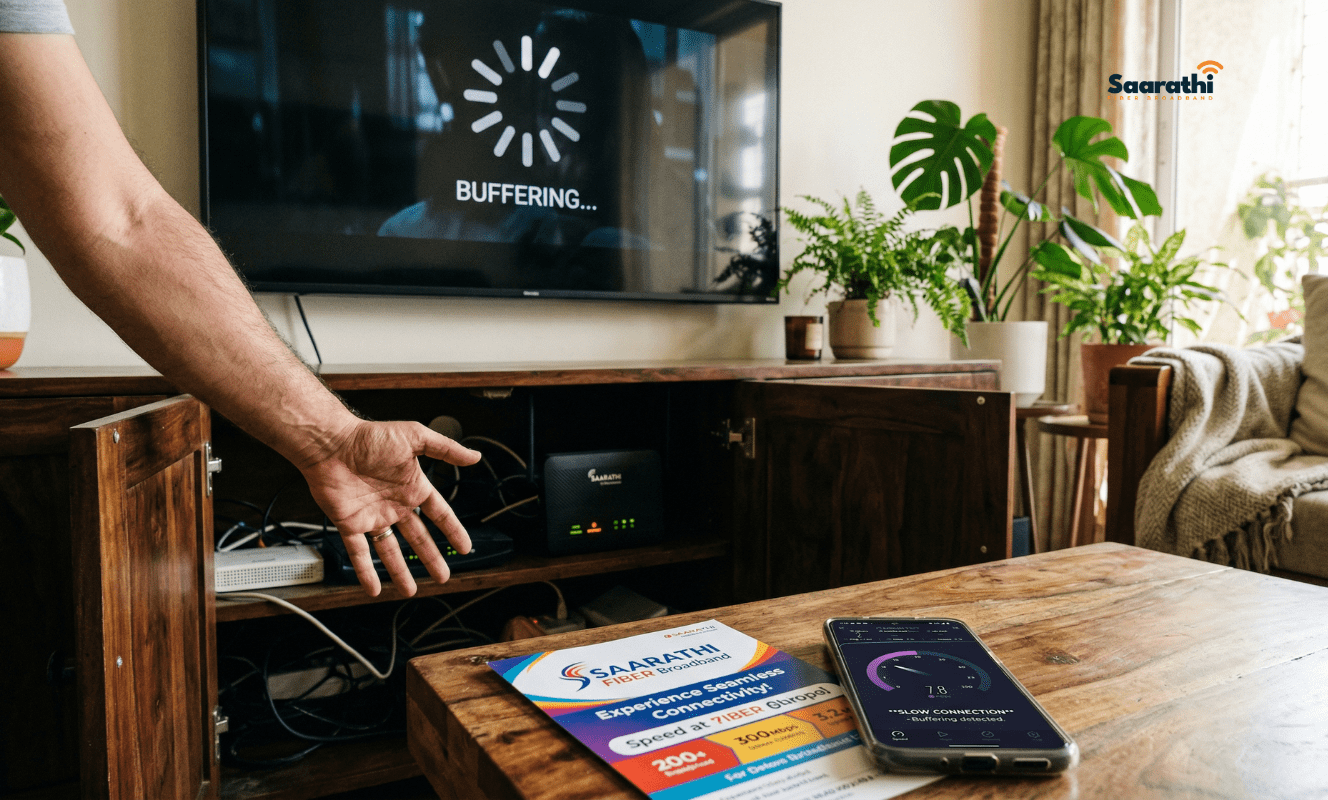
Are you staring at a spinning buffering wheel yet again? Nothing ruins a relaxing movie night faster than a lagging internet connection. If you are constantly wondering about the main reasons your WiFi is slow, you are definitely not alone.
Thankfully, you usually do not need to call a technician to solve these annoying speed drops. Most home network issues originate from simple environmental factors or basic hardware glitches.
Quick Answer: Why is my WiFi slow all of a sudden? If your internet suddenly drops in speed, the most common culprits include:
- An overworked router that needs a reboot.
- Physical obstructions like thick concrete walls.
- Electronic interference from microwaves or Bluetooth devices.
- Background apps are downloading large files.
- Connecting to the slower 2.4GHz frequency band.
Let’s dive deeper. Here are the 10 most common reasons your WiFi is slow, alongside simple 5-minute fixes for each problem.
1. Your Router Needs a Quick Reboot
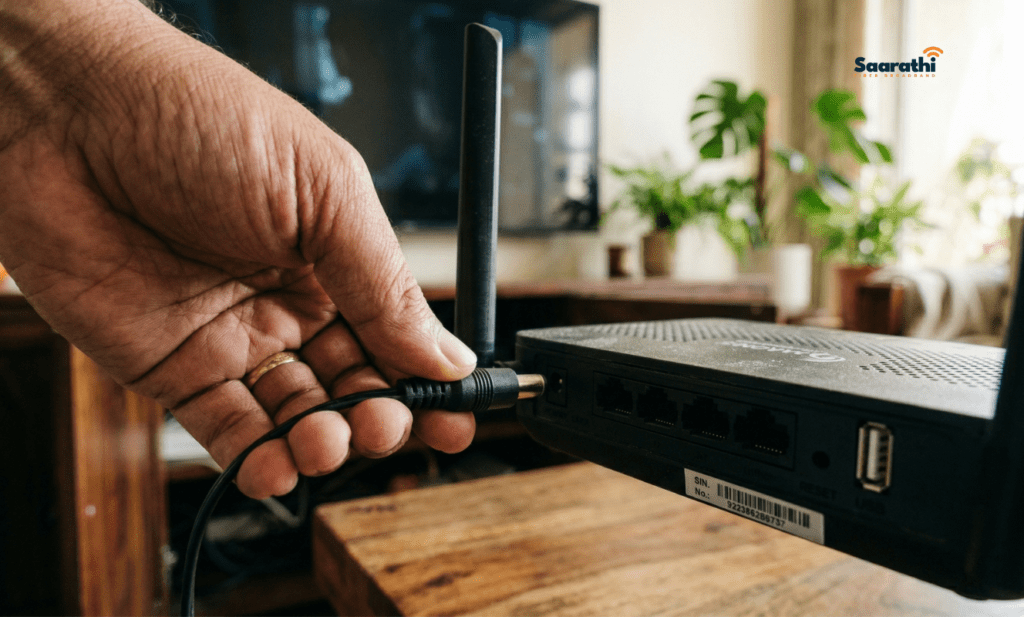
First and foremost, routers are basically miniature computers. They have their own memory, processors, and operating systems. Over time, their memory fills up with temporary data, and their processors get overworked. Consequently, your network slows to an absolute crawl.
The 5-Minute Fix: You can solve this with a classic power cycle. Unplug your router directly from the wall socket. Afterward, wait a full 30 to 60 seconds. Finally, plug it back in. This clears the temporary memory and gives the device a fresh start.
2. You Are Connected to the Wrong Frequency Band

Most modern broadband routers are dual-band. This means they broadcast two separate wireless networks simultaneously: a 2.4GHz band and a 5GHz band. The 2.4GHz band reaches further distances but provides much slower speeds. On the other hand, the 5GHz band is incredibly fast, but it struggles to travel through thick walls.
The 5-Minute Fix: Open your smartphone or laptop’s wireless settings. If you are sitting in the same room as the router, make sure you connect to the network name ending in “5G”. Therefore, you will instantly unlock your maximum available speed.
3. Bad Router Placement is Hiding Your Signal
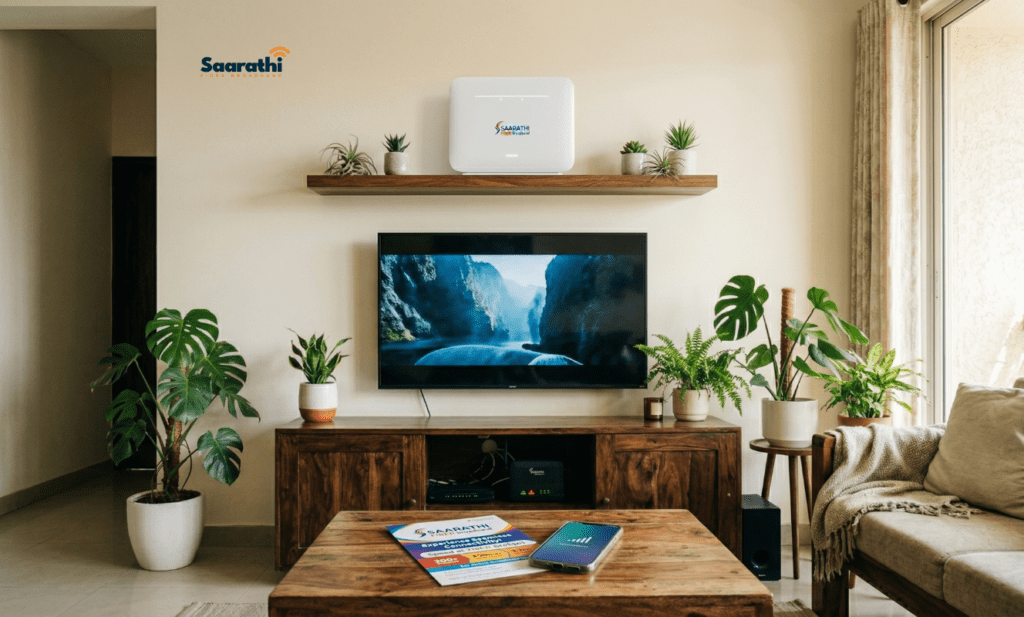
Where do you keep your router? If you shoved it inside a wooden TV cabinet, hid it behind a thick bookshelf, or placed it on the floor, you are actively blocking the signal. Radio waves need open space to travel efficiently. Hiding the box is one of the biggest reasons your WiFi is slow.
The 5-Minute Fix: Move your router out into the open immediately. Elevate it on a high table, a floating shelf, or mount it on the wall. Because wireless signals travel best downwards and outwards, placing the device higher is always better for coverage.
4. Thick Apartment Walls Are Blocking the Signal

Concrete, brick, and metal are the natural enemies of wireless signals. In many modern apartments, the architectural walls are thick enough to completely kill a signal traveling between the living room and the bedroom. Furthermore, large bodies of water, like giant fish tanks, will absorb radio waves.
The 5-Minute Fix: If you cannot move the router to a more central location, try leaving the doors open between rooms. For a permanent solution, you should consider purchasing a Mesh WiFi system. These systems use multiple nodes to bypass thick walls entirely.
5. Microwave and Bluetooth Interference
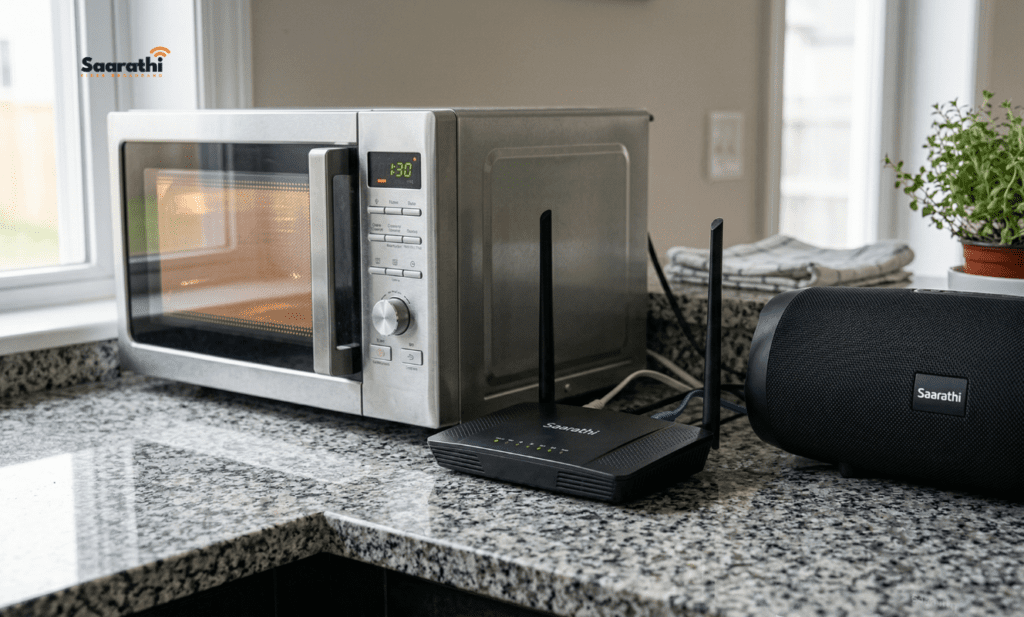
Did you know your kitchen appliances can ruin your internet? The standard 2.4GHz wireless band shares its exact radio frequency with microwaves, baby monitors, cordless phones, and wireless Bluetooth speakers. Every time you heat up a snack, you might be causing invisible traffic jams in the air.
The 5-Minute Fix: Keep your networking equipment far away from the kitchen. Moreover, ensure the router isn’t sitting right next to large Bluetooth soundbars or wireless bases. You can also run a quick speed test using Speedtest.net to see if nearby devices are causing sudden drops.
6. The Antennas Are Pointed in the Wrong Direction
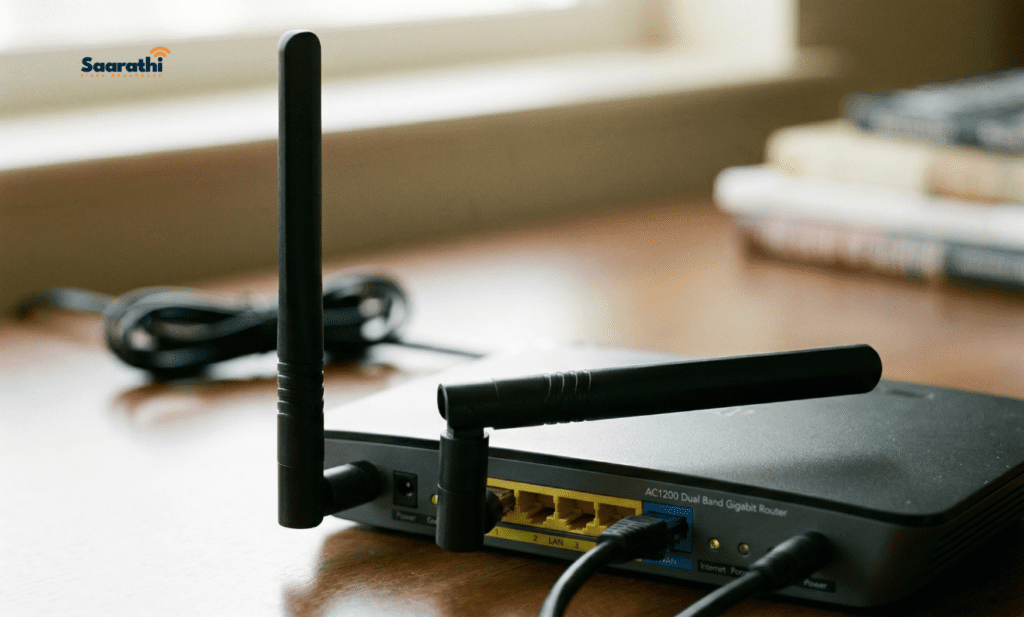
If your networking hardware features external antennas, their physical position actually matters. The signal broadcasts outward perpendicular to the antenna itself. Pointing them all in the same direction limits your coverage bubble.
The 5-Minute Fix: If your device has two antennas, point one straight up vertically. Then, lay the other one flat on its side horizontally. This configuration ensures your mobile devices receive a strong signal whether you hold them upright or lay them flat on a table.
7. Heavy Background App Data Drain
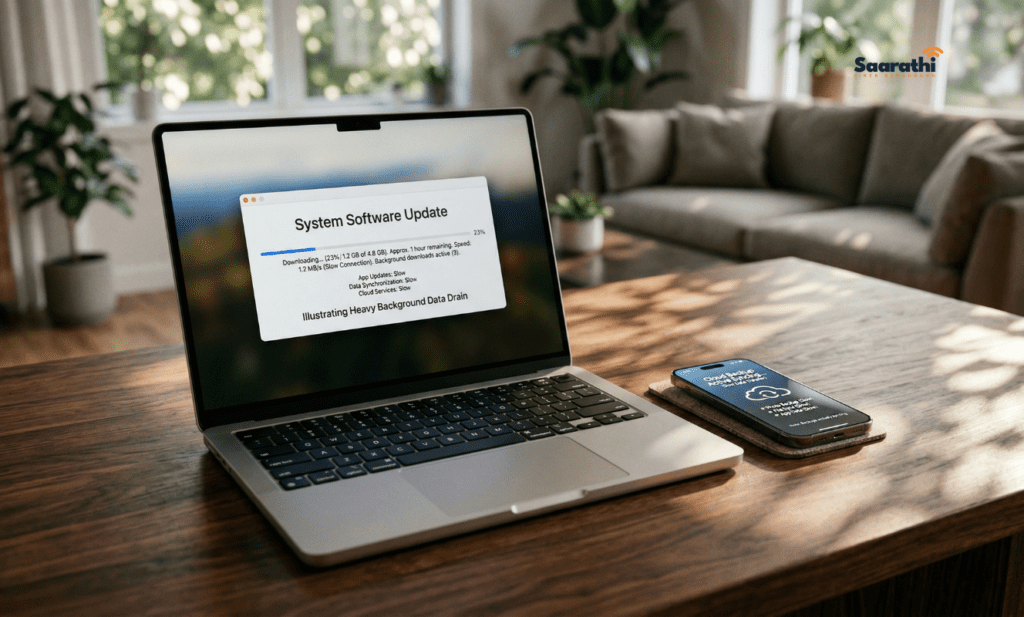
Sometimes your internet connection is perfectly fine, but a single device on your network is hogging all the available bandwidth. Laptops downloading massive software updates, phones syncing photos to the cloud, or gaming consoles installing patches will drain your speed rapidly.
The 5-Minute Fix: Check your personal devices carefully. Pause any large background downloads or automatic cloud backups until you finish your important work or streaming sessions.
8. Too Many Smart Devices on the Network
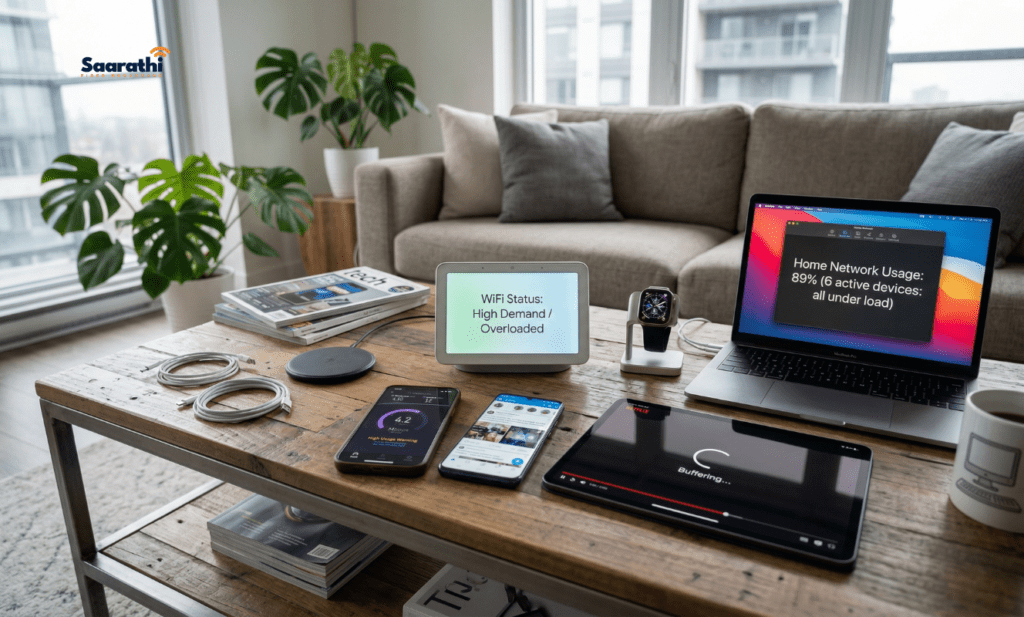
Modern homes are filled with connected gadgets. Every smart TV, smart bulb, security camera, and voice assistant takes a small slice of your router’s processing power. If you have 30 devices connected at once, an older piece of hardware simply cannot keep up with the continuous traffic.
The 5-Minute Fix: Disconnect smart gadgets that you rarely use. If you genuinely need dozens of devices online 24/7, you must upgrade to a modern Wi-Fi 6 router designed specifically for handling heavy smart-home traffic.
9. Security Breaches and Network Freeloaders
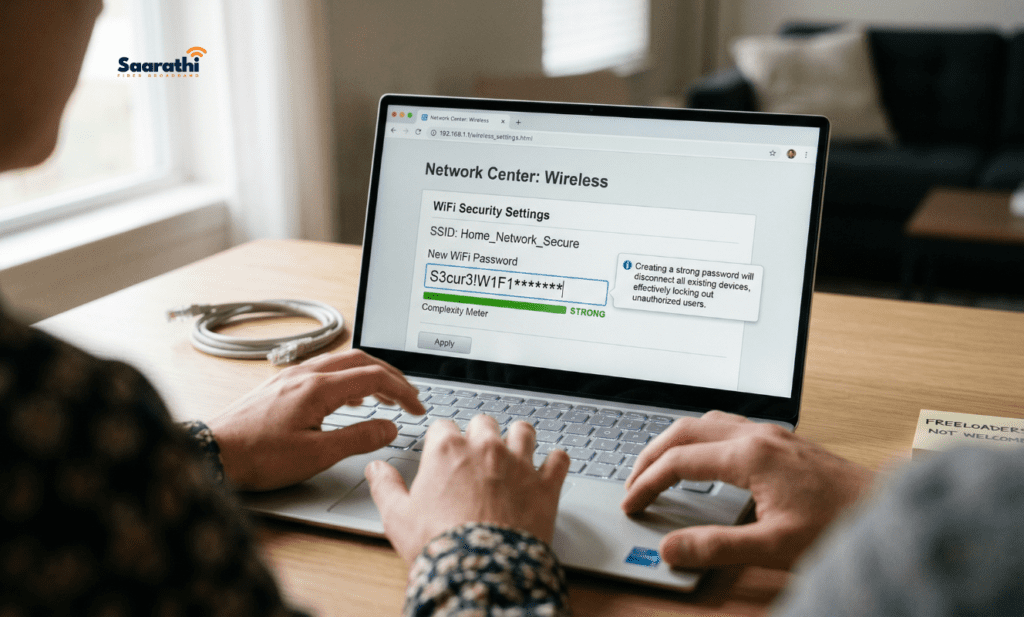
Are unauthorized users stealing your bandwidth? If your password is weak, or if you haven’t changed it in several years, neighbors might be automatically connecting to your network. This extra traffic is a very common reason for mysterious speed drops.
The 5-Minute Fix: Change your security key immediately. You do not even need a mobile app to do this. Read our step-by-step guides on How to Change Your Airtel Xstream WiFi Password Without the App or How to Update Your JioFiber Settings.
10. Your Broadband Plan Just Isn’t Fast Enough
If you have tried all nine fixes above and your internet is still crawling, you must face a harsh truth. Your current ISP plan simply doesn’t provide enough speed for your modern household. Standard DSL connections or overloaded cable lines cannot handle 4K streaming and remote video calls simultaneously.
The Ultimate Fix: It is time to upgrade to pure fiber optics.
People Also Ask (FAQ)
You can test your speed by visiting a free testing website like Fast.com or Speedtest.net. For the most accurate results, stand in the same room as your router and ensure no other devices are currently downloading large files.
Yes, upgrading your router can increase your speed, but only up to the maximum limit provided by your Internet Service Provider (ISP). A great router eliminates dead zones and handles multiple devices better, but it cannot magically create more bandwidth than you pay for.
This usually happens because the laptop contains an older, outdated wireless network card that cannot process high speeds. Alternatively, the laptop might be stuck connecting to the slower 2.4GHz frequency band while your phone automatically connects to the faster 5GHz band.
Tired of Troubleshooting? Upgrade to Saarathi Fiber Broadband
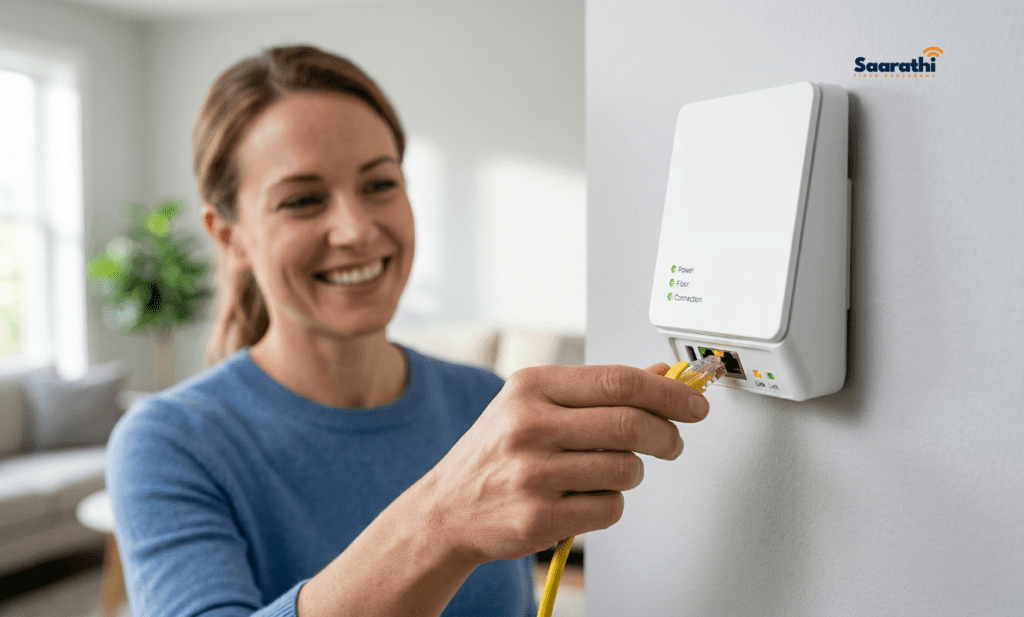
Stop fighting with slow speeds, buffering screens, and unresponsive customer service apps. Saarathi Fiber Broadband delivers ultra-high-speed, symmetric fiber internet directly to homes across Wagholi, Lohegaon, and Dhanori.
Experience the difference of a truly reliable, local connection designed for modern homes. Check out our unlimited data plans and get your apartment upgraded today!