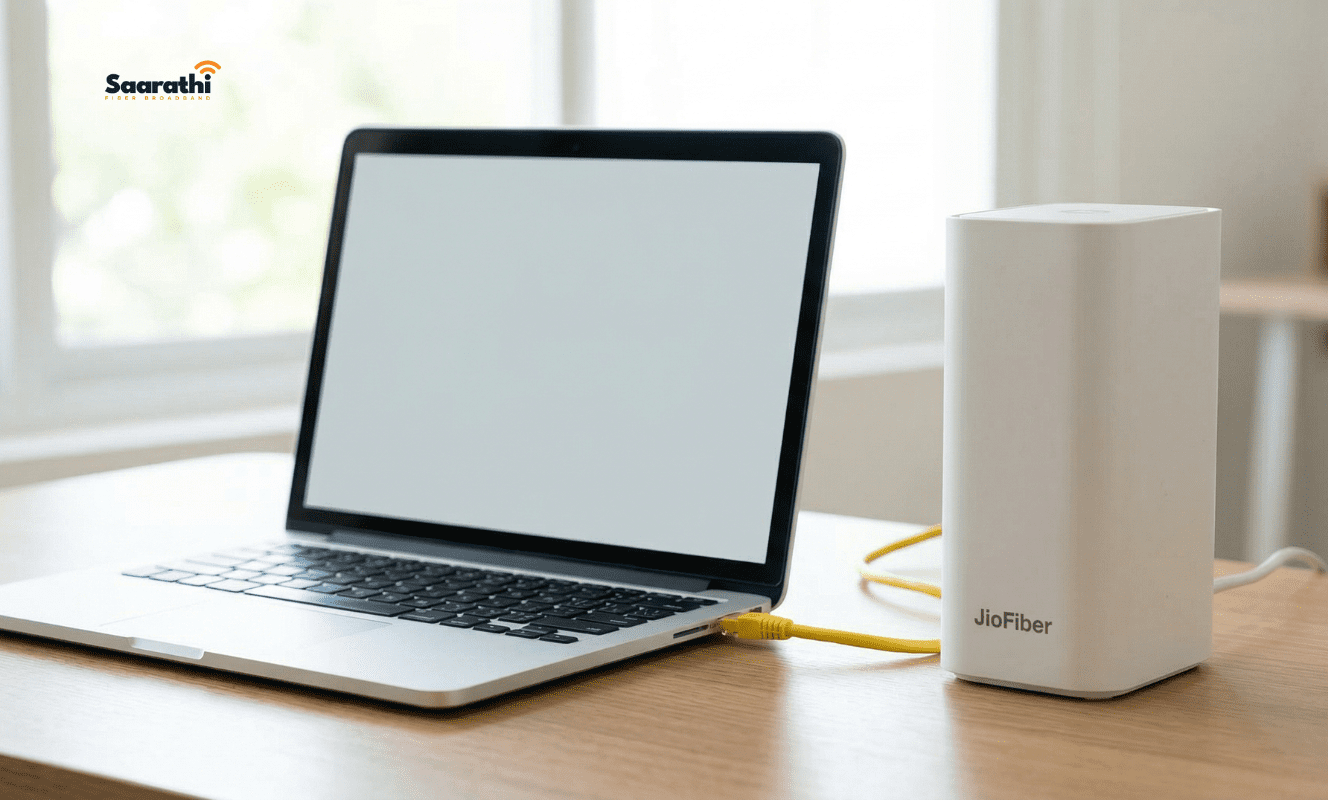
The MyJio app works for most things. However, when it fails to load, crashes, or simply won’t recognize your number, you don’t actually need it. Instead, you can change JioFiber WiFi password directly from any browser in under 3 minutes.
Quick Answer: Change JioFiber WiFi password in 5 steps
Here is the fast, no-fluff process to update your security immediately:
- Open any browser and go to
192.168.29.1.- Log in using the default credentials (Username:
admin/ Password:Jiocentrum).- Navigate to Network → WLAN → Wireless Security.
- Find the WPA Key field, delete the old text, and type your new password.
- Click Save. The router will reboot and apply the new password.
You can change your JioFiber WiFi password in two ways.
- MyJio app: Open MyJio, go to Fiber Account → My Device → Wi-Fi Settings, tap your network name, tap the pencil icon next to Edit Password, enter the new password and save.
- Browser (no app, no OTP): Open 192.168.29.1 on a device connected to your JioFiber WiFi, log in with the router username and password, go to Network → WLAN → Wireless Security, type a new WPA key and click Save.
Both take about 2 to 3 minutes. Your devices will disconnect once and need the new password.
Method 1: Change JioFiber WiFi password using the MyJio app
- Open the MyJio app and log in with your JioFiber number or registered mobile number.
- Select Fiber Account (your JioFiber connection).
- Tap My Device at the bottom of the screen.
- Scroll down to Wi-Fi Settings.
- Tap the WiFi name (SSID) you want to change.
- Tap the pencil icon next to Edit Password.
- Enter your new password and tap Save.
If your router shows two networks (for example a 2.4GHz and a 5GHz one), repeat the steps for the second network.
Method 2: Change JioFiber WiFi password without the app (browser)
This method runs on the router itself, so it works even when the internet is down and it does not need an OTP.
Before you start: Connect your phone or laptop to your JioFiber WiFi. Mobile data will not work for this.
- Open the router page. In the browser address bar (not the Google search box), type
192.168.29.1and press Enter. - Log in. The default login is usually username
adminand passwordJiocentrum(the password is case-sensitive). If your router sticker shows different details, use those. - Open WiFi settings. Go to Network → WLAN → Wireless Security. On some routers this is called WLAN Profile or Wireless.
- Enter the new password. Find the WPA Key (or Pre-Shared Key) field, delete the old text and type your new password.
- Save. Click Save or Apply and confirm. The router restarts in about 30 seconds.
- Reconnect your devices using the new password.
Login not working? Your installer may have changed the default password. In that case you can reset the router with the small reset pinhole on the back, which restores factory settings. Note that a reset also clears any other custom settings.
For more on logging in, see: Jio router IP address and default login page.
How do I change both the 2.4GHz and 5GHz WiFi passwords?
Dual-band JioFiber routers broadcast two networks, often named something like JioFiber-xxxx and JioFiber-xxxx-5G. Each network has its own profile. After you update the first one, go back to the WLAN menu and repeat the steps for the second profile. If you only change one, devices on the other band keep working with the old password.
How do I see my current JioFiber WiFi password?
- In the app: Open My Device → Wi-Fi Settings and tap your network name. The password is shown on that screen.
- In the router page: Log in at 192.168.29.1 and open the same Wireless Security page. The WPA Key field is usually hidden behind dots, so you may need to reset it to a new password instead of reading the old one.
Why use the browser instead of the MyJio app?
Fundamentally, the MyJio app is the official way to manage your JioFiber connection. For most account tasks, it works well. But, WiFi password changes inside the app depend on a live server connection, an OTP to your registered mobile, and app-side permissions that occasionally fail.
Conversely, the router’s built-in admin panel is entirely different. It runs locally on your home network. Therefore, it works even when the internet is completely down, requires no OTP, and has zero dependency on Jio’s servers being available.
What you need before starting
You need exactly two things to complete this process:
- A device (phone, laptop, tablet) currently connected to your JioFiber WiFi — even if the outside internet is down.
- Your router’s admin password — this is usually printed on the sticker on the back of the physical router.
💡 Default JioFiber login credentials: The username is generally
adminand the password isJiocentrum. If the sticker on your hardware shows something different, use those values instead.
Step-by-step: Change your JioFiber WiFi password
Step 1: Open the router admin panel
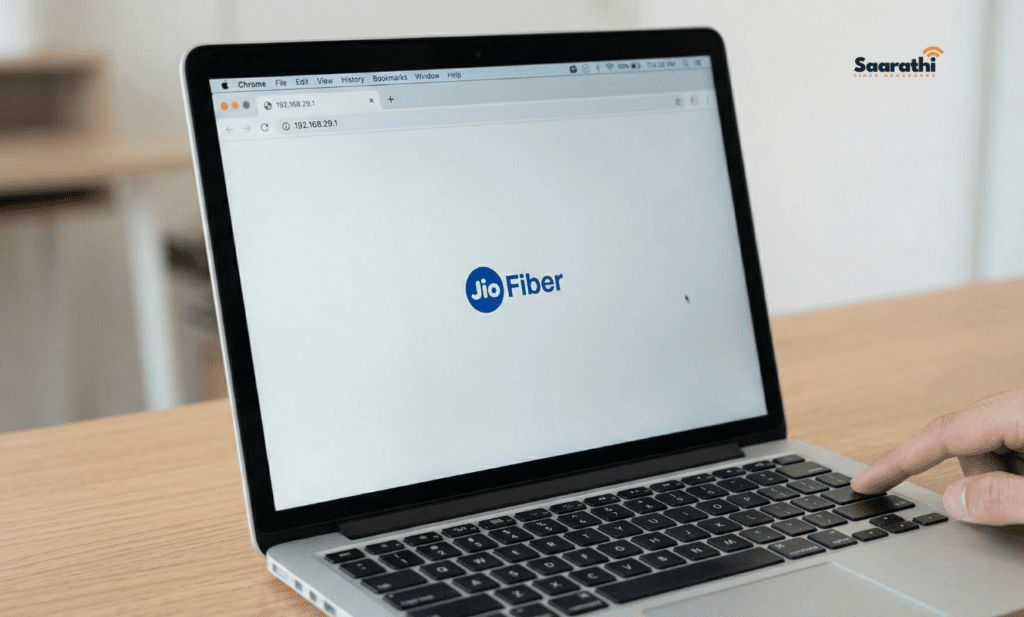
First, open Chrome, Safari, or any web browser on your phone or laptop. In the browser address bar (not the Google search box), type the JioFiber router IP address exactly like this and press Enter: 192.168.29.1
Immediately, a login page will appear. If you see a blank screen, your device may not be properly connected to the JioFiber local network.
Step 2: Log in with your admin credentials
Next, enter your username and password on the login screen. For most standard JioFiber routers, the defaults are:
- Username:
admin - Password:
Jiocentrum
⚠️ Credentials not working? Your installation engineer may have changed the default password during setup. If this happens, you must press the router’s physical reset pinhole button to restore the factory defaults.
Step 3: Navigate to Wireless Security settings
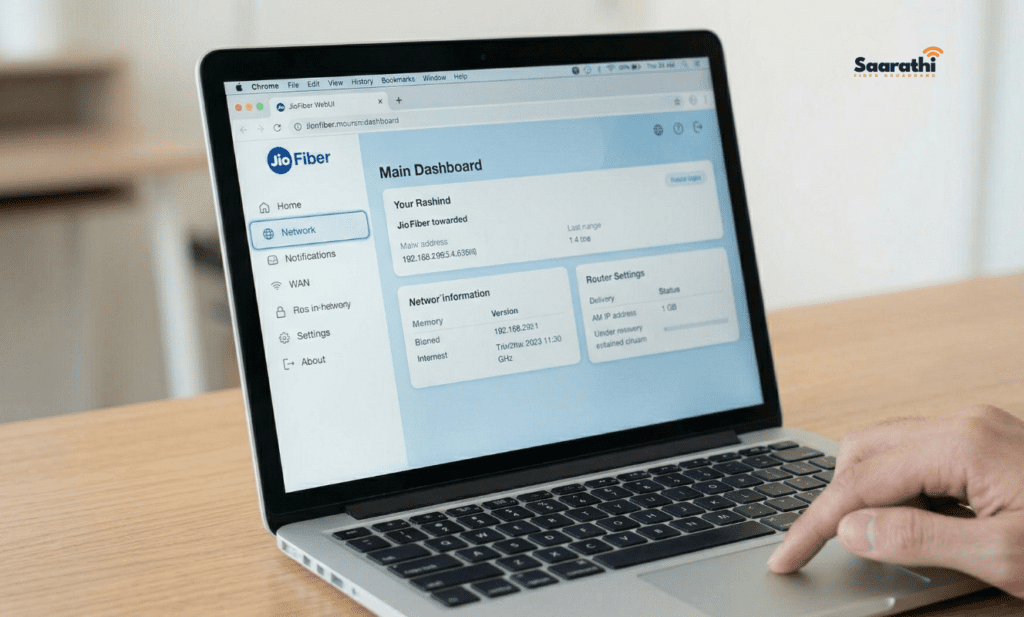
Once you log in successfully, look for the navigation menu on the left side of your screen. Specifically, follow this path: Network → WLAN → Wireless Security (sometimes labeled as WLAN Profile).
Step 4: Update the WPA Key (your WiFi password)
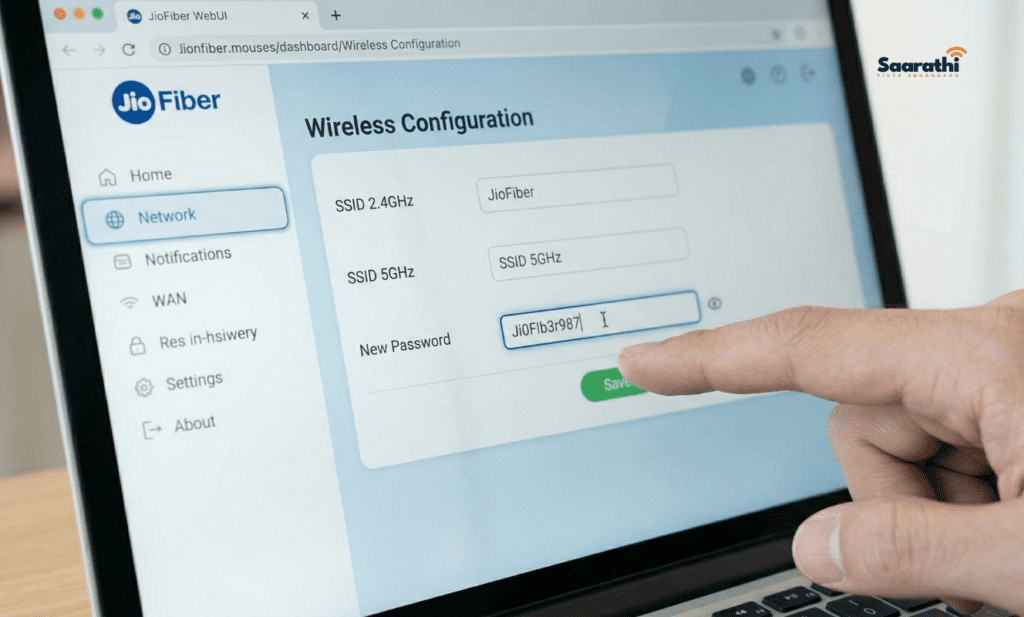
Here, you will see a text field called WPA Key or Pre-Shared Key. This box contains your current WiFi password, usually hidden behind dots. Simply click the field, select all the text, delete it, and type your brand-new password.
ℹ️ Pro-Tip: Use at least 12 characters, mixing uppercase letters, numbers, and a special character to ensure maximum security.
Step 5: Save and reconnect
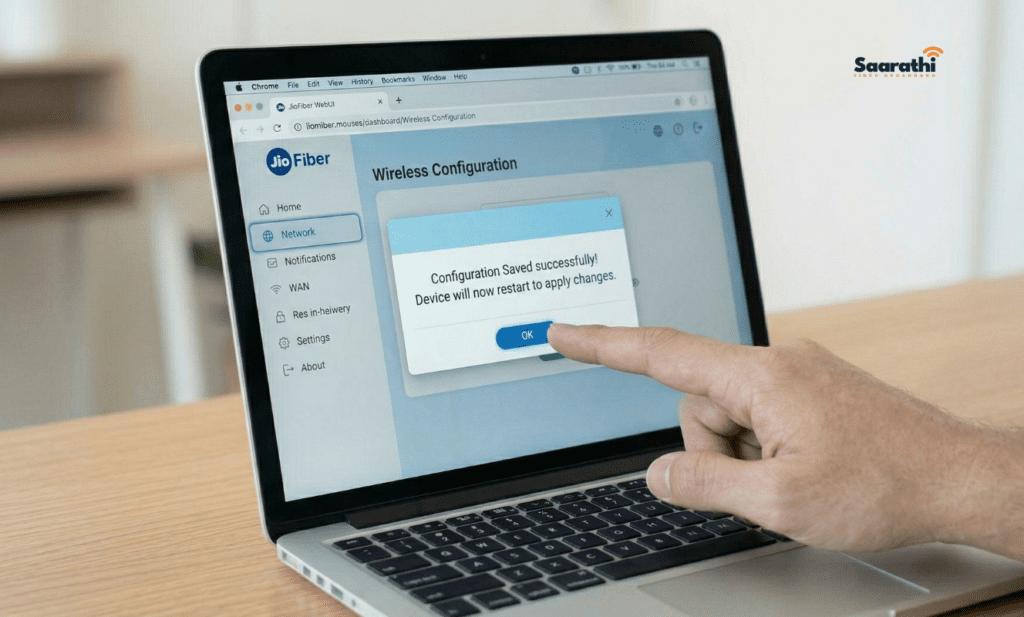
Finally, click Save or Apply at the bottom of the screen. The router will reboot automatically, which takes about 30 seconds. After it restarts, you must manually reconnect all your personal devices using the new password.
Updating both your 2.4GHz and 5GHz passwords
Typically, JioFiber routers broadcast two separate WiFi networks. Most users see them as two different network names (for example, JioFiber-Home and JioFiber-Home-5G). Importantly, these two bands have completely separate passwords.
After completing the steps above for your 2.4GHz network, you must return to the WLAN menu and repeat the exact same process for the 5GHz profile.
Troubleshooting common login problems
- 192.168.29.1 is not loading: Make absolutely sure your device is connected to the JioFiber WiFi network and not your mobile 5G data.
- No WLAN menu is visible: You might be on a limited-access account. Therefore, log out and log back in specifically using
adminas the username. - The router is not rebooting after clicking Save: Manually power cycle the router. Turn the physical switch off, wait 10 seconds, and turn it back on.
Frequently Asked Questions (FAQ)
The default JioFiber router admin page is located at 192.168.29.1. Type this strictly into your browser’s top address bar.
The default JioFiber admin credentials are username admin and password Jiocentrum (case-sensitive). If these fail, the installation engineer changed them, and you must reset the router using the back pinhole button.
Yes, absolutely. The router admin panel works entirely on your local home network. You do not need the outside internet to be active to change local settings.
JioFiber dual-band routers broadcast two separate networks. The 2.4GHz band has a longer range, while the 5GHz band is faster for devices in the same room. Both require separate password updates.
Log in to 192.168.29.1 and navigate to Network → WLAN → WLAN Profile. Locate the SSID field, change the text to your desired network name, and click Save.
Use the MyJio app (Fiber Account → My Device → Wi-Fi Settings → Edit Password) or log in to 192.168.29.1 in a browser and update the WPA Key under Network → WLAN → Wireless Security.
The usual login page is 192.168.29.1 with username admin and password Jiocentrum (case-sensitive). Check the sticker on your router if it does not work.
Yes. All connected devices are disconnected once and must reconnect with the new password.