Quick Summary to Change WiFi Password From Mobile
- Find Your Router Details: Check the sticker on the back of your physical router. Note the Default IP address (usually
192.168.1.1or192.168.0.1) and the admin login credentials (oftenadminfor both username and password).- Log In Via Mobile Browser: Ensure your phone is connected to your current WiFi. Open Chrome or Safari, type the exact IP address into the top URL bar, and enter the admin credentials when prompted.
- Navigate to Security Settings: In the router’s administration menu, find the section labeled Wireless, WLAN, or Network Settings, then tap on Wireless Security.
- Enter the New Password: Locate the box named WPA2 Pre-Shared Key or Password. Delete the old text, type your new secure password, and tap Save or Apply. (Update both the 2.4GHz and 5GHz bands if you have a dual-band router).
- Reconnect Your Devices: Your router will automatically reboot and kick all devices offline. Open your phone’s WiFi settings and reconnect using your brand-new password.
You notice your evening internet speeds dropping significantly. Perhaps your neighbors guessed your password. Currently, you want to kick everyone off your network immediately. Fortunately, you do not need to pull out a heavy laptop to fix this security issue. Many people mistakenly believe they must call their telecom provider or download a buggy corporate application to manage their home network. In reality, you already hold the only tool you need right in your hand. This guide explains exactly how to change WiFi password from mobile in under two minutes.
Specifically, this method works for almost every standard router in East Pune, including TP-Link, D-Link, Syrotech, and ZTE. Furthermore, it completely bypasses frustrating customer service hotlines.
Step 1: Find Your Router’s IP Address and Login Details
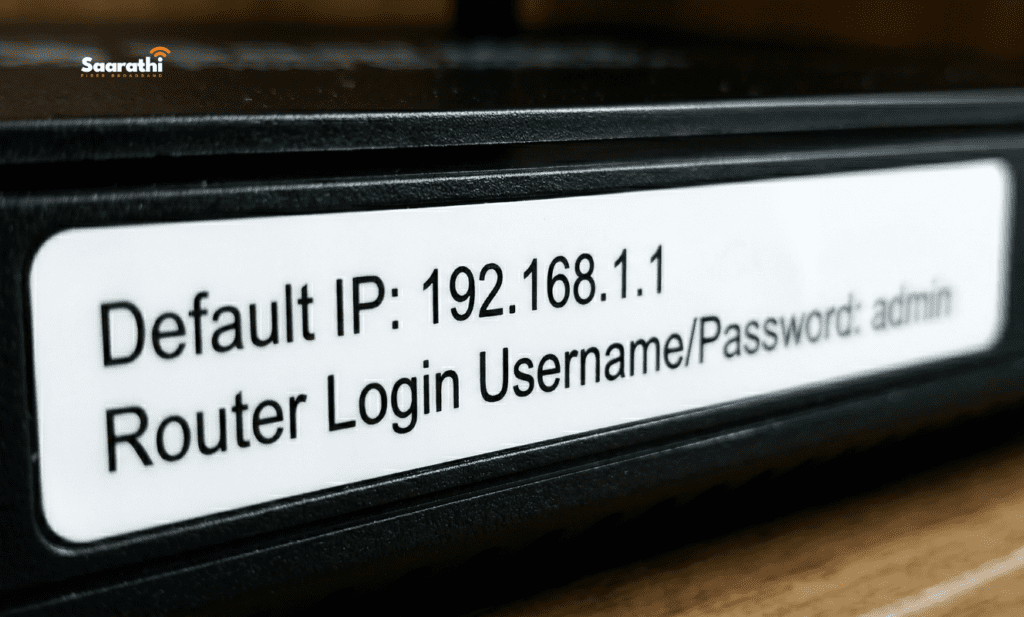
Before you touch your phone, you must locate your router’s digital address. Every piece of internet hardware has a specific local IP address and a default administrator password.
Where to look: First, walk over to your physical internet router. Next, pick it up and look at the sticker firmly attached to the bottom or back panel. Usually, you will see a string of numbers labeled “Default IP” or “Router Login.”
Common Router IP Addresses in India:
- 192.168.1.1 (Most common for Syrotech, Digisol, and generic routers)
192.168.0.1(Very common for TP-Link and D-Link)192.168.29.1(Common for specific telecom-provided boxes)
Additionally, note the “Admin Username” and “Admin Password” printed on that exact same sticker. Typically, the factory default for both is simply the word admin.
Step 2: Access the Router Settings Via Your Mobile Browser
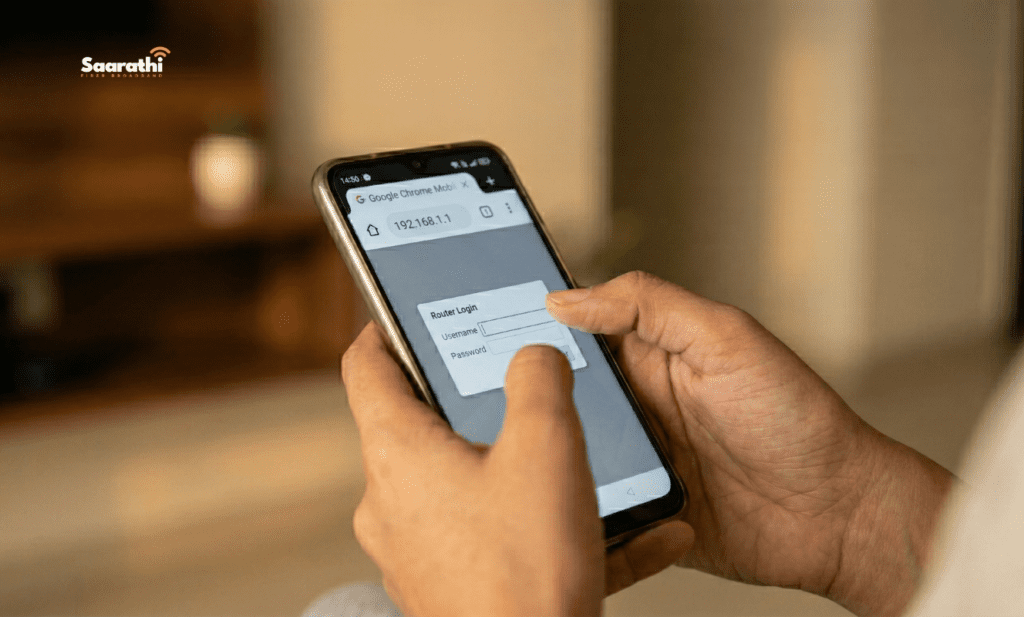
Now, you will use your smartphone to access the digital control panel. Importantly, ensure your phone is currently connected to the WiFi network you actually want to change.
How to log in: Initially, open your preferred mobile browser, such as Google Chrome or Apple Safari. Next, tap the top address bar. Instead of typing a website name, type the exact IP address you found on the router sticker. Finally, hit enter.
Consequently, a login screen will appear asking for a username and password. Enter the default admin credentials you noted in Step 1. Suddenly, you now have complete, unrestricted access to your router’s backend system.
Step 3: Locate the Wireless Security Settings
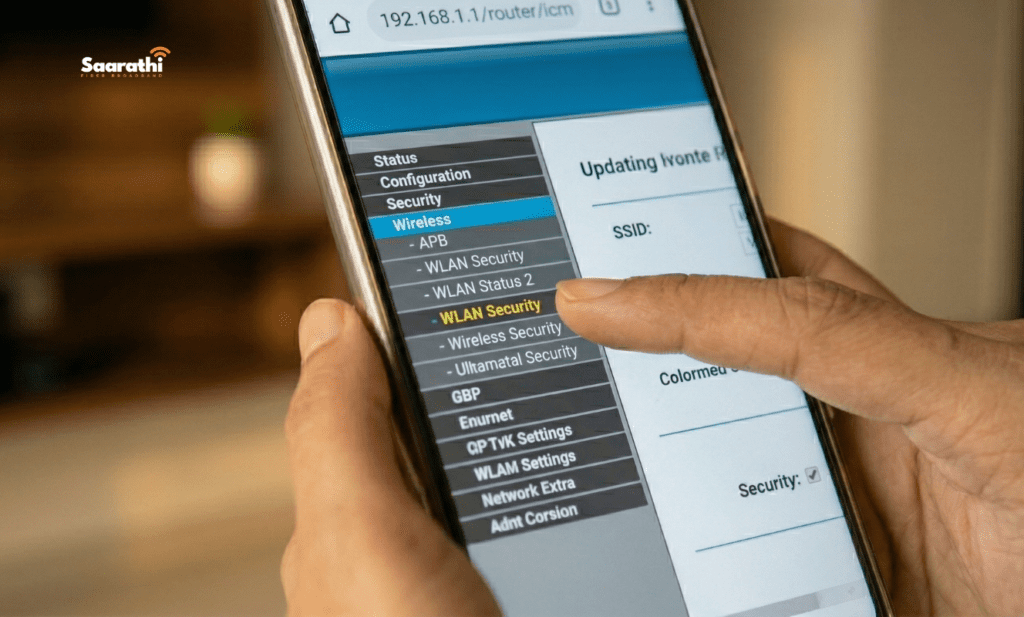
Every router brand features a slightly different menu layout. However, the core terminology always remains exactly the same across the industry.
Navigating the menu: First, look at the menu on the left side or top of your mobile screen. You might need to pinch and zoom to read the text clearly. Next, tap on the section labeled “Wireless,” “WLAN,” or “Network Settings.” Afterward, look for a sub-menu specifically titled “Wireless Security” or “WLAN Security.” Here, you will finally see a text box labeled “WPA/WPA2 Pre-Shared Key,” “WiFi Key,” or simply “Password.” Ultimately, this box contains your current, vulnerable password.
Step 4: Change Your WiFi Name and Password
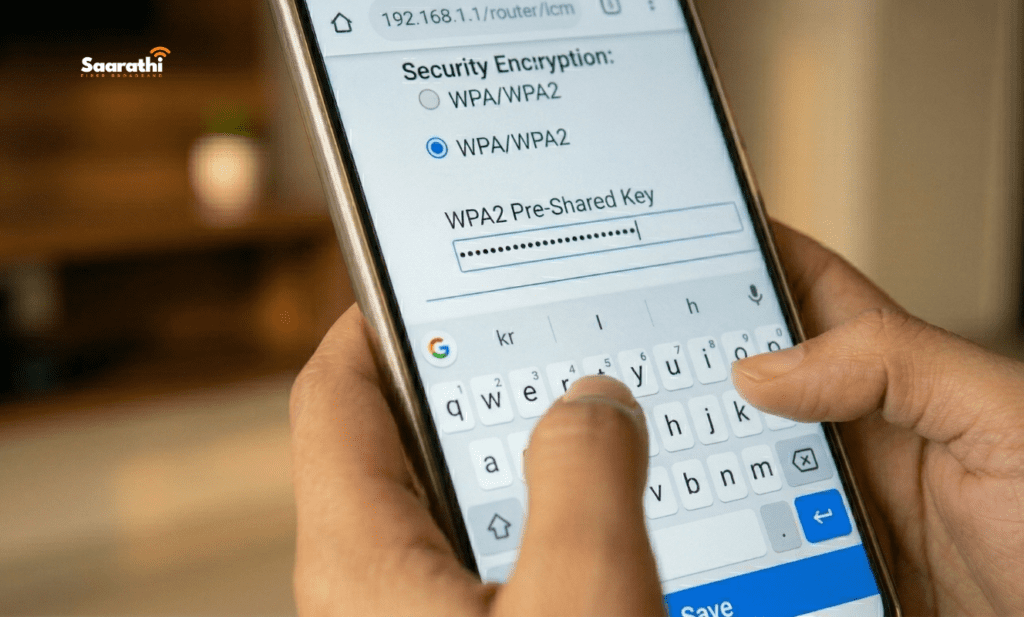
This is the crucial security step. Delete the old text currently sitting in the password box. Now, type your brand new, highly secure password.
Pro-Tip for Dual-Band Routers: Modern homes frequently use dual-band routers. Therefore, you likely broadcast two separate networks: a 2.4GHz network (for range) and a 5GHz network (for speed). If your router separates these, you must change the password for both frequencies individually within the same menu.
Saving your changes: Once you type the new password, scroll to the absolute bottom of the screen. Tap the “Save” or “Apply” button. Immediately, your router will reboot.
Step 5: Reconnect Your Personal Devices
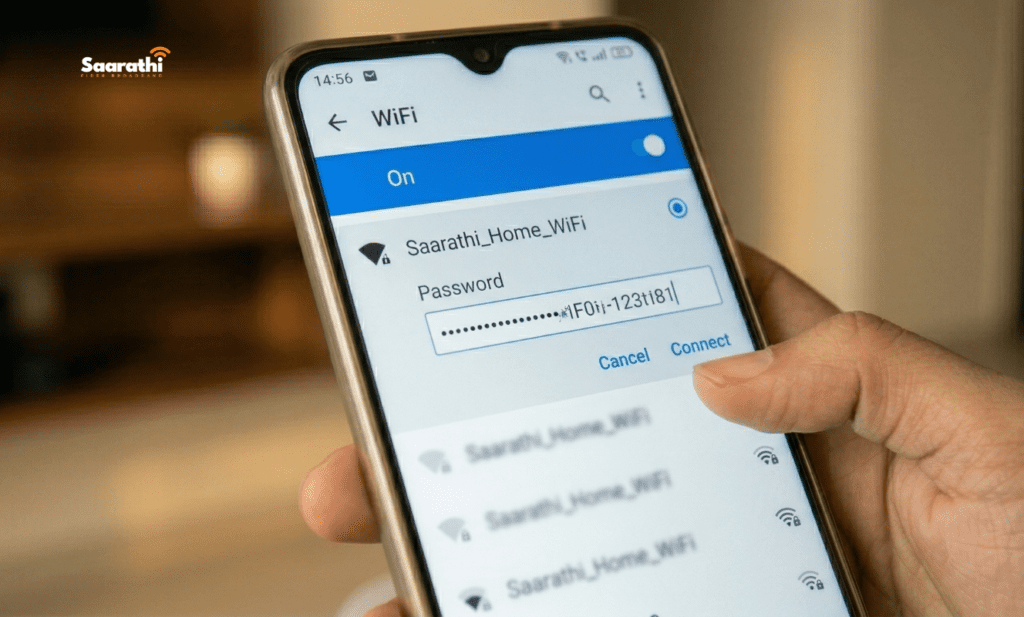
Because you successfully learned how to change WiFi password from mobile, your router just kicked every single connected device offline. This includes the smartphone you are currently holding!
Your neighbors, old roommates, and forgotten smart devices are permanently locked out. Now, simply open your phone’s standard WiFi settings. Tap your network name, enter the fresh password you just created, and enjoy your secured connection.
The Reality Check: Is Your Internet Still Slow?
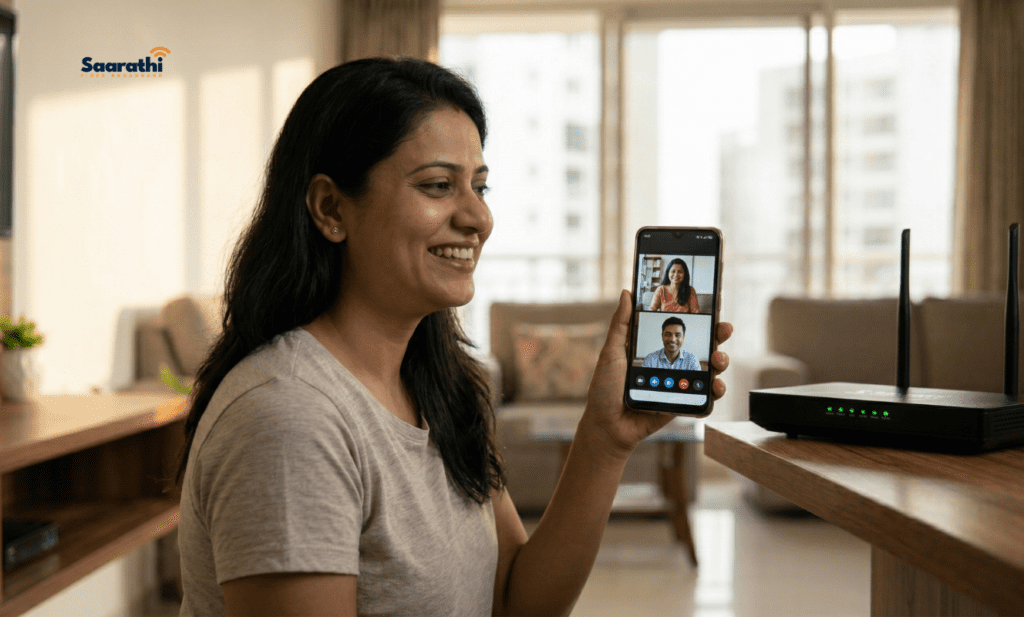
Often, people frantically search for how to change their password because their evening internet is buffering terribly. They assume unauthorized users are stealing their bandwidth.
If you successfully changed your password, kicked everyone off, and your Netflix still buffers at 9:00 PM, your password was never the problem. Instead, your actual Internet Service Provider is failing you.
Many corporate ISPs aggressively throttle your speeds during peak East Pune evening hours. To completely eliminate this frustration, you must upgrade to a dedicated line.
This is exactly why smart residents choose Saarathi Fiber Broadband. We provide true symmetrical fiber directly to your Wagholi or Kharadi apartment. Unlike shared wireless networks, our dedicated optical fiber guarantees your speed never drops, regardless of what time it is.
Check Saarathi Fiber Broadband plans and availability for your society here to secure a truly reliable connection.
FAQ: How to Change WiFi Password From Mobile
Occasionally, routers use different default addresses. If the standard IP fails, try typing 192.168.0.1 or 192.168.1.254. Alternatively, check your smartphone’s WiFi settings, click on your connected network, and look for the number listed next to “Gateway” or “Router.”
Yes, absolutely. You do not need an active internet plan to access your router’s backend. You simply need a local connection between your mobile phone and the physical router box via the WiFi signal.
If the default admin password fails, someone previously changed it. To fix this, you must factory reset the router. Simply locate the tiny reset hole on the back of the device, press a paperclip into it for ten seconds, and the router will revert to the original sticker credentials.
Massive telecom companies want to track your usage and push advertisements through their proprietary apps. By learning to manage your router directly via the IP address, you bypass their restricted software entirely and maintain total control over your hardware.